Open shared Dropbox and Google Drive files from Notion
By Files to Notion. Updated .
Shared Team Directories lets teammates use the same Notion database links to open their own downloaded copies of shared files. Each computer needs Files to Notion running, the files available locally, and its own shared-directory configuration.
Example: two teammates, different local paths
Imagine Alex catalogs a shared project folder on a Mac and Sam opens its files on Windows. Both have the same project files in Dropbox or Google Drive, but their local root paths differ. Configuring Shared Team Directories tells the app where the shared files live on each computer. This is an illustrative workflow, not a customer testimonial.
Before you start
- Both teammates must have access to the shared cloud folder and Notion database.
- Download the needed files using the provider's desktop app; online-only placeholders may not open locally.
- Install Files to Notion on each supported computer and check the required licenses. Extended includes two devices; it is not an unlimited-seat team license.
- Use this workflow for desktop access, not as a way to publish local files to phones or the web.
1. Make the shared files available locally
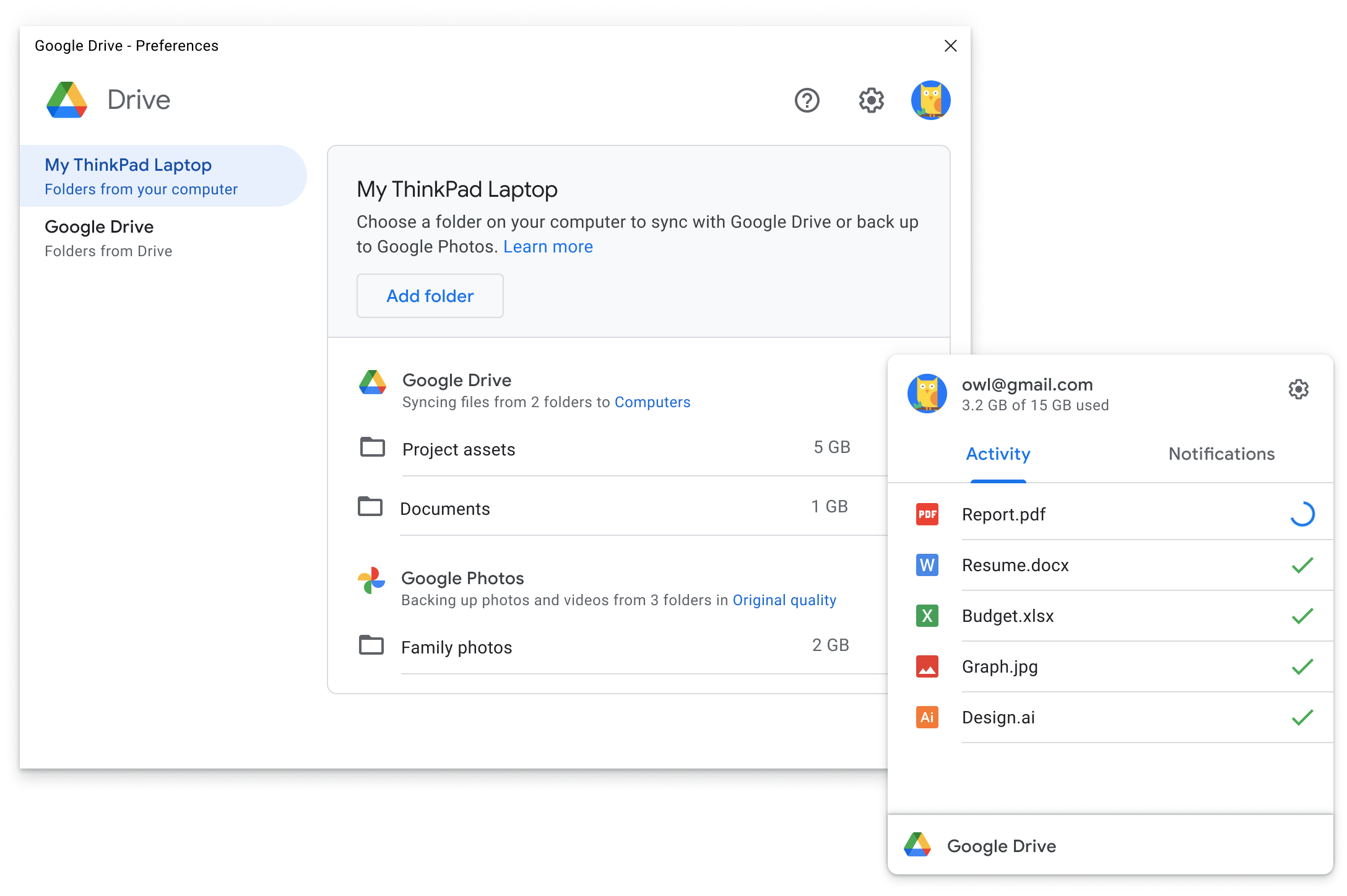
On both computers, use Dropbox or Google Drive to download the project folder. Confirm that a sample file opens from Finder or File Explorer before setting up Notion links.
2. Catalog the folder in Notion
On the computer creating the catalog, connect the integration and synchronize the folder. Share the resulting Notion database with the teammate who needs to use its file links. Follow the folder walkthrough for the initial synchronization.
3. Configure each computer's Shared Team Directories
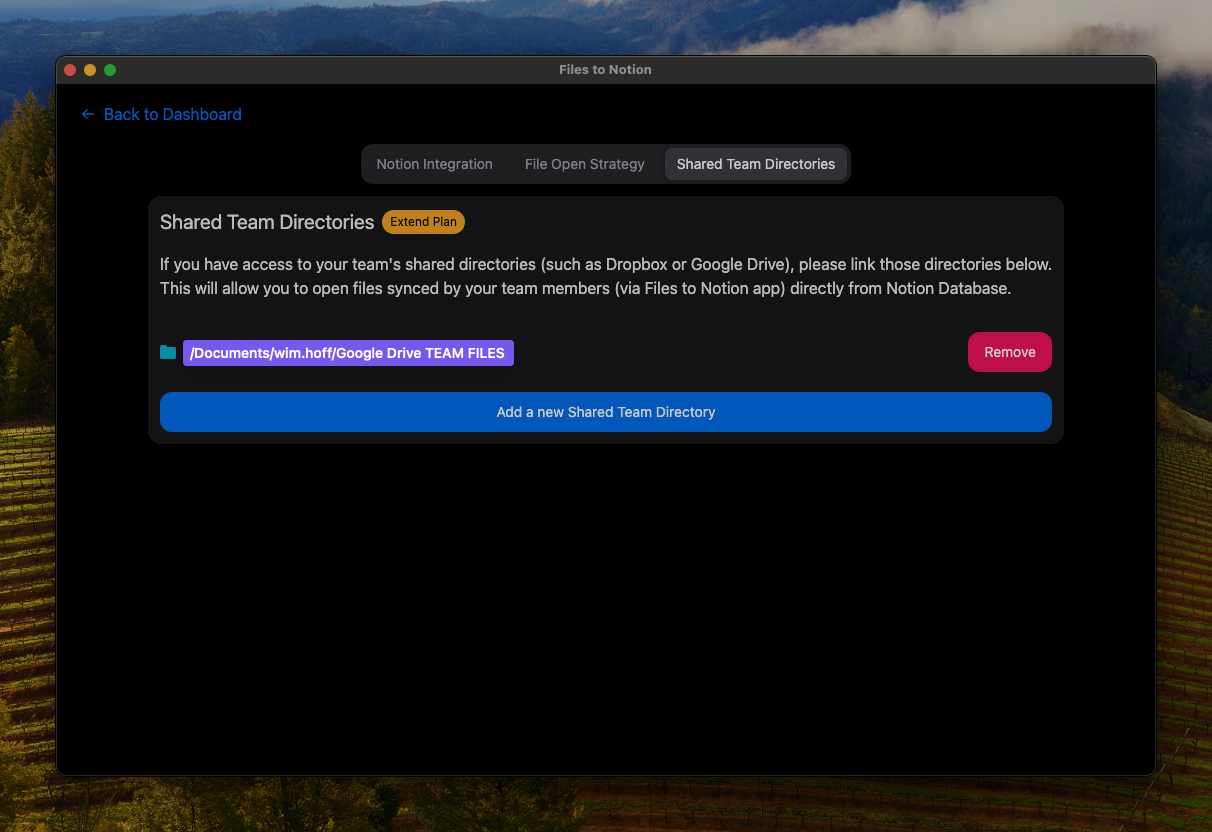
With the Extended Plan, define the shared directory root on the receiving computer, such as /Users/sam/Google Drive. Choose the folder corresponding to the shared files in the catalog.
4. Test with one file before rolling out
Keep Files to Notion running and open a generated link from the shared Notion database. Confirm that it opens the receiving teammate's local copy in the expected application. Test a second file in a subdirectory if your workflow uses nested folders.
Troubleshooting and boundaries
- If the file is missing, verify cloud access, download status, and the selected local root.
- If nothing opens, confirm the desktop app is running and inspect browser permission prompts.
- After moving or renaming files, check the catalog and synchronize again; do not assume old paths remain valid.
- Files to Notion does not grant cloud-file permissions or replace Dropbox/Google Drive synchronization.
- Database permissions expose metadata such as file names and paths; they do not themselves grant access to the file contents.
See local-link troubleshooting or compare cloud links and native uploads if teammates need access without a desktop app.
Try Basic first to validate the local-file workflow, then review the $39 one-time Extended Plan for shared-directory features and license terms.